Intelligence / Workflows

Build the job once. Know what runs next.

Start with a ready-made recipe or build your own. A workflow is work Zip can repeat: find facts in permitted company records, check whether action is needed, write an output, and carry out supported steps. Run it yourself, put it on a schedule, or connect it to a watch. You can see its steps, choose who may use or edit it, and inspect every run.

Illustration of connected information flowing through a workflow.
The recipe

Make each step clear before it runs.

Save it where you ask Zip

Describe a repeatable job in Ask Zip and save it under Workflows. Search the saved list, open a recipe to read its steps, and press Run when you want it now. Edit steps opens the full editor so you can customize its instructions, sources, step order, schedule, delivery, and review points.

Work it out, then decide

A step can find a fact and carry it forward without writing a page. An “Only if…” check can stop the remaining steps when no matching records exist, so a quiet week does not create an empty report or unnecessary task.

Write or do something

Write steps create readable content from the records the workflow may use. “Do something” steps can publish, send, assign a task, add a key date, or share a document where that action is supported. You set the destination and audience instead of leaving Zip to guess.

Choose how it starts

Run a saved workflow yourself, choose a day and time for a repeating run, or use a watch to start it when a monitored condition becomes newly true. A scheduled workflow runs under its creator’s company access; action steps follow the workflow’s unattended-action setting.

Make it your own

Open the recipe. Shape every step.

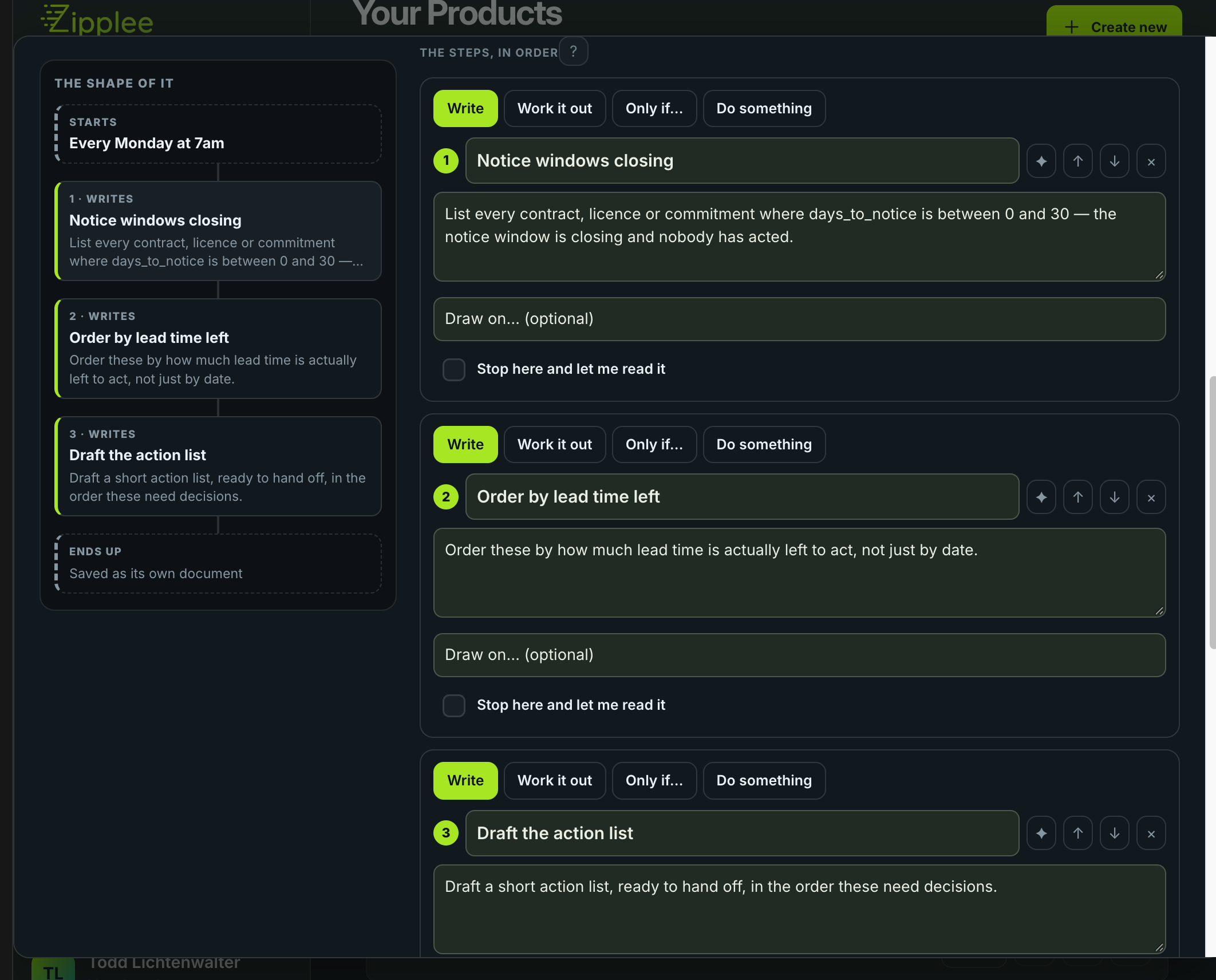
Edit steps takes you into the full workflow editor. The map shows when the job starts, what each step does, and where the result goes. Change the recipe before you run it: the wording, data it draws on, order, schedule, audience, and review points are yours to set.

Actual Zipplee workflow editor showing the visual map and editable steps for a contract notice workflow.
Actual Zipplee workflow editor. The map at left reflects the steps you edit at right. View full size ↗

Choose the kind of step

Write a document section, work out an answer without writing, continue only if a condition is met, or do a supported action. Add, remove, and reorder steps as the job changes.

Give each step direction

Rename it, rewrite its instructions, and choose company data or your own sources with Draw on. The map updates from the same recipe, so you can see the full sequence.

Pick the start and destination

Run it when you press it, set a repeating day and time, or use a watch. Choose whether writing stays in the current document or becomes its own, and whether to publish or send it.

Decide where to pause

Mark a step Stop here and let me read it. Set who can use or edit the workflow, and review outward actions before they reach people when your settings require it.

Control and review

You can see what it may change.

Review outward actions

Set an individual step to pause for review. “Ask before acting” can require a yes before changes or sends. On unattended schedules, action steps remain proposals until unattended action is enabled; the action is still checked against the person’s access.

Keep use and editing separate

Who can use a workflow decides who may see and run it. Who can edit it decides who may change its steps, schedule, or name. An owner or admin can set the company-wide editing rule and make an exception for a particular workflow.

Keep earlier versions

Saved workflows retain their previous versions. If an edit removes a needed check or changes the audience, open the history in the editor and restore a version you trust.

Inspect the run

Jobs started through Ask Zip remain in Your jobs after you close the chat. Open What I did for the steps and results. Scheduled workflows also keep a run result. Stop a live job, pause a repeating schedule, and undo supported logged actions when available.

An example in practice

Follow up on overdue onboarding.

One saved workflow, with a result your team can check each time it runs.

  1. Find the right records

    Work it out: look for onboarding tasks that are overdue within the company's permitted records and remember who needs attention.

  2. Stop when there is no work

    Only if there are overdue tasks does the workflow continue. If there are none, the run records that outcome instead of sending a blank follow-up.

  3. Prepare and review the action

    Write a summary and prepare a task or message for the people responsible. Review the recipients, wording, and due date whenever the step or action settings require approval.

  4. Check what happened

    Open the job to see what was completed, skipped, or left waiting for you. Change the saved recipe if the next run should work differently.

Ready-made workflows

Find a starting point for your work.

Browse by area, then open any name to see what it does, when it is set to run, and the steps in its recipe. These are starting points: run one yourself, adjust its schedule or delivery, and use Edit steps to tailor the work to your company.

Company Comms

  • Announcements by category

    What's been published, grouped by category — is one category doing all the talking.

    Runs monthly.
    1. Announcements by category
    2. Where the gaps are
    3. Draft to fill it
  • Corrections the AI has needed

    Where a human had to fix the AI, and what they told it — the system's own error rate.

    Runs monthly.
    1. AI correction log
    2. Root cause, not topic
    3. Draft the fix note
  • Documents ready for the AI to use

    What's been uploaded and is actually available for Zipp to draw on.

    Runs when you press it.
    1. Knowledge readiness
    2. The gap that matters most
    3. Draft the ask
  • Least-read published content

    What's been published but barely opened — a signal it's not landing.

    Runs monthly.
    1. Low engagement content
    2. Why it's being missed
    3. Draft the re-share
  • Open enrollment reminder

    Summarizes where the current plan year stands, then posts a reminder to everyone.

    Runs when you press it.
    1. Plan year status
    2. What will confuse people
    3. Remind everyone
  • Plan renewal countdown

    How many days until the plan year needs to be decided, and what's still outstanding.

    Runs when you press it.
    1. What's left to decide
    2. Turn it into a countdown
    3. Draft the punch-list
  • Recent announcements review

    What's been published to the company recently, and by whom.

    Runs monthly.
    1. Recent announcements
    2. Read it for tone
    3. Draft the fix
  • Upcoming key dates

    Every deadline or event on the calendar in the next 30 days.

    Runs weekly.
    1. Key dates ahead
    2. Which ones have no owner
    3. Draft the reminder
    4. Post the reminder
  • What employees are asking the AI

    The real, anonymous questions people are asking Zipp — the clearest signal of what's confusing.

    Runs weekly.
    1. Common AI questions
    2. The most common gap
    3. Draft the FAQ entry
    4. Post the update
  • What's stuck in approvals

    Everything waiting on a decision right now, and how long it's been waiting.

    Runs weekly.
    1. Approval queue
    2. Who's actually holding it up
    3. Draft the nudge

Contracts & Compliance

  • Compliance snapshot

    Who's missing required training or a certification that's expired or expiring soon.

    Runs monthly.
    1. Training gaps
    2. Rank by real risk
    3. Draft the reminder
  • Contracts past their notice window

    Contracts where the chance to give notice has already closed — the ones locked in for another term.

    Runs monthly.
    1. Notice window already closed
    2. What we're locked into
    3. Draft the brief
  • Insurance and licence renewals

    Every insurance policy or licence with a notice or end date coming up.

    Runs monthly.
    1. Insurance/licence renewals due
    2. Sort by what's at stake
    3. Draft the priority list
  • Open audits and their status

    Every audit currently running, its owner, and how close it is to done.

    Runs weekly.
    1. Open audits
    2. Which one's furthest behind
    3. Draft the status update
    4. Ask for a status update
  • Overdue audit tasks

    Individual audit steps that are overdue right now.

    Runs weekly.
    1. Overdue audit steps
    2. Who's carrying the most
    3. Draft the follow-up

Finance & Spend

  • Auto-renewing contracts review

    Everything set to renew itself if nobody intervenes — a deliberate decision list.

    Runs monthly.
    1. Auto-renew list
    2. Worth a second look
    3. Draft the questions
  • Biggest active commitments

    The highest-value contracts and licences currently in force.

    Runs monthly.
    1. Top commitments by value
    2. Least justified by cost
    3. Draft the case
  • Contracts ending without a renewal plan

    Commitments with days_to_end closing in and auto_renew off — someone needs to decide.

    Runs weekly.
    1. Ending without auto-renew
    2. What actually happens
    3. Draft the decision memo
  • Contracts with notice deadlines coming up

    Every contract or licence where the notice window is closing within 30 days.

    Runs weekly.
    1. Notice windows closing
    2. Order by lead time left
    3. Draft the action list
  • Largest single spend items this month

    The biggest individual spend line items, not totals — the outliers worth a second look.

    Runs monthly.
    1. Biggest line items
    2. One-off or repeating
    3. Draft the summary
  • Monthly spend by department

    What the company spent last month, broken down by department and category.

    Runs monthly.
    1. Spend by department
    2. What moved the most
    3. Draft the question
  • Spend by category this quarter

    Where the money's actually going, by category rather than department.

    Runs monthly.
    1. Spend by category
    2. Fastest-growing category
    3. Draft the question
  • Spend trend, last 3 months

    Is spend trending up or down, department by department.

    Runs monthly.
    1. 3-month spend trend
    2. Most concerning trend line
    3. Draft the check-in
  • Spend with no linked contract

    Money going out that isn't tied to any tracked commitment — a real audit gap.

    Runs monthly.
    1. Untracked spend
    2. What's actually worth tracking
    3. Draft the list
  • This week's new vendor or customer relationships

    New parties added to the record recently.

    Runs monthly.
    1. New parties this period
    2. Missing a tracked commitment
    3. Draft the checklist
  • Vendor and party directory by department

    Who the company deals with, grouped by which department owns the relationship.

    Runs when you press it.
    1. Parties by department
    2. Unusually thin or thick
    3. Draft the check
  • Year-to-date spend by department

    Cumulative spend per department for the year so far.

    Runs monthly.
    1. YTD spend by department
    2. Project to year end
    3. Draft the heads-up

HR & People

  • Badge catalog review

    What badges exist, whether each is active, and what triggers it — useful before a recognition push.

    Runs when you press it.
    1. Badge catalog
    2. Stale or missing
    3. Draft the recommendation
  • Department roster snapshot

    A clean, current roster for one department — names, titles, tenure.

    Runs when you press it.
    1. One department's roster
    2. What stands out
    3. Draft the summary
  • Inactive roster check

    Anyone marked inactive who's still showing up in other reports — a data-hygiene check.

    Runs monthly.
    1. Inactive employees
    2. Where they're still showing up
    3. Draft the checklist
  • Latest pulse survey results

    A plain-language summary of the most recent survey's results — themes, not who said what.

    Runs when you press it.
    1. Survey themes
    2. What needs a real response
    3. Draft the message
    4. Post the message
  • Monthly people report

    Headcount by department, then who's still ramping up in onboarding.

    Runs monthly.
    1. Headcount by department
    2. Who's still onboarding
    3. Growing faster than it can onboard
    4. Draft the heads-up
  • New badges awarded this week

    Recognition given out in the last 7 days.

    Runs weekly.
    1. This week's recognition
    2. Repeat winners, and who's missing
    3. Draft the shout-out
    4. Post the shout-out
  • New hire week-one digest

    Who started this week and what's on their plate.

    Runs weekly.
    1. This week's new hires
    2. Already behind, in week one
    3. Draft the check-in
  • Recognition given this month

    Who's been recognized, how often, and for what — and who hasn't been recognized at all.

    Runs monthly.
    1. Recognition summary
    2. Who's gone unmentioned
    3. Draft the encouragement
  • Requests aging report

    Every open request and how long it's been waiting, oldest first.

    Runs weekly.
    1. Open requests, oldest first
    2. Simple but stuck
    3. Draft the nudge
  • Requests by kind this month

    What people are actually asking HR for, grouped by kind.

    Runs monthly.
    1. Requests by kind
    2. Fastest-growing kind
    3. Draft the flag
  • Survey response rate

    How many people actually answered the last survey, out of how many it went to.

    Runs when you press it.
    1. Response rate
    2. Who's dragging it down
    3. Draft the reminder
  • Team anniversaries this month

    Who's celebrating a work anniversary this month, then a note to celebrate them.

    Runs monthly.
    1. Anniversaries this month
    2. The milestones worth naming
    3. Post a note
  • Time-off policy refresher

    A plain-language summary of the current time-off policy, ready to repost.

    Runs when you press it.
    1. Summarize the PTO policy
    2. The rule people misread most
    3. Draft the clarification
    4. Post the refresher
  • Wellness challenge completion rate

    What share of people who joined actually finished the current challenge.

    Runs when you press it.
    1. Completion rate
    2. Where people drop off
    3. Draft the encouragement
  • Wellness challenge participation

    Who joined the current wellness challenge and who's actually finishing it.

    Runs when you press it.
    1. Participation vs completion
    2. Joined but never started
    3. Draft the nudge

IT & Assets

  • Assets never actually used

    Licence seats or equipment with no recorded use at all.

    Runs monthly.
    1. Never-used assets
    2. What it's costing
    3. Draft the recommendation
  • Assets tied to a specific contract

    Equipment or seats whose cost is actually locked in by a commitment.

    Runs when you press it.
    1. Assets under contract
    2. Where the contract decision matters too
    3. Draft the brief
  • Equipment by department

    What equipment and licences each department is actually holding.

    Runs when you press it.
    1. Assets by department
    2. More than headcount explains
    3. Draft the question
  • Equipment out of warranty

    Equipment whose warranty has already run out.

    Runs monthly.
    1. Out-of-warranty equipment
    2. Replace, repair, or risk
    3. Draft the priority list
    4. Flag it to whoever has it
  • Highest-cost assets

    The most expensive things the company owns or leases seats of.

    Runs when you press it.
    1. Top assets by cost
    2. Actually worth the cost
    3. Draft the review note
  • Total cost of equipment and seats

    What the company owns and pays for, added up.

    Runs monthly.
    1. Total asset cost
    2. How much is avoidable
    3. Draft the summary
  • Unused licence seats

    Software seats nobody has opened in a long time — money going nowhere.

    Runs monthly.
    1. Unused seats
    2. Monthly cost of nothing
    3. Draft the recommendation
    4. Check if they still need it
  • Warranty expiring soon

    Equipment whose warranty runs out in the next 60 days — worth a decision before it lapses.

    Runs monthly.
    1. Warranty expiring soon
    2. Critical, not just expensive
    3. Draft the decision list
    4. Flag it to whoever has it

Onboarding & Training

  • Certification score distribution

    How people are scoring on certifications — is the bar too easy or too hard.

    Runs monthly.
    1. Score distribution
    2. Is the bar right
    3. Draft the note
  • Certifications already expired

    Anyone whose certification has already lapsed — a real compliance gap.

    Runs weekly.
    1. Expired certifications
    2. Rank by real risk
    3. Draft the reminder
  • Certifications expiring soon

    Anyone whose certification expires in the next 30 days.

    Runs weekly.
    1. Expiring certifications
    2. Who's cutting it close
    3. Draft the reminder
  • Course assignment gaps

    Anyone who should have a course assigned by now but doesn't.

    Runs weekly.
    1. Missing course assignments
    2. A pattern, not scattered misses
    3. Draft the note
  • Course completion by department

    Training completion rates, broken down by department.

    Runs monthly.
    1. Completion by department
    2. Furthest behind average
    3. Draft the check-in
  • Onboarding journeys by status

    Every onboarding/offboarding journey right now, grouped by whether it's on track.

    Runs weekly.
    1. Journeys by status
    2. Stuck longer than usual
    3. Draft the status check
  • Onboarding journeys open too long

    Onboarding that's been active for over 30 days and still isn't done.

    Runs weekly.
    1. Long-running onboarding
    2. The likely bottleneck
    3. Draft the follow-up
  • Onboarding tasks with no real owner

    Tasks that say a role but have nobody actually assigned — the ones that quietly never happen.

    Runs weekly.
    1. Ownerless tasks
    2. Which role has the most orphans
    3. Draft the message
  • Practice Room confidence check

    Roleplay/practice scores — who's ready for real conversations and who needs more reps.

    Runs monthly.
    1. Practice scores
    2. Underprepared, not just low-scoring
    3. Draft the encouragement
  • This week's onboarding tasks due

    What's due in onboarding this week, across everyone currently ramping up.

    Runs weekly.
    1. Due this week
    2. Already trending late
    3. Draft the heads-up
  • Training due for review soon

    Whose training is coming up for spaced-repetition review in the next week.

    Runs weekly.
    1. Reviews due soon
    2. Stacking up for one person
    3. Draft the reminder
  • Training struggling list

    Who's stuck — low mastery scores or repeated attempts on the same course.

    Runs monthly.
    1. Who's struggling
    2. One course or a pattern
    3. Draft the check-in
  • Weekly onboarding check

    Who's behind on onboarding tasks right now, and by how much.

    Runs weekly.
    1. Who's overdue
    2. Who needs a real conversation
    3. Draft the reminder

Operations & Projects

  • Biggest projects by task count

    Which running project actually has the most moving parts.

    Runs when you press it.
    1. Projects by task count
    2. One person carrying it
    3. Draft the note
  • Everything due or expiring in the next 7 days

    A single cross-cutting view: onboarding tasks, project tasks, certifications and key dates all due this week.

    Runs weekly.
    1. This week, everything due
    2. Order by real urgency
    3. Draft the priority list
  • Incidents this month

    Every incident logged this month and its current status.

    Runs monthly.
    1. Incidents this month
    2. A pattern, not one-offs
    3. Draft the summary
  • Launches and hiring rounds in flight

    Every workstream that's a launch or hiring round, and where it stands.

    Runs weekly.
    1. Launches and hiring rounds
    2. Running long
    3. Draft the status check
    4. Ask for a status check
  • New projects and audits opened this month

    What started this month that wasn't running before.

    Runs monthly.
    1. New workstreams this month
    2. Same few names, repeatedly
    3. Draft the heads-up
  • Open projects and their status

    Every active project, its owner and how close to done it is.

    Runs weekly.
    1. Active projects
    2. Furthest from done
    3. Draft the check-in
  • Overdue project tasks

    Individual project tasks that are overdue right now, across everything running.

    Runs weekly.
    1. Overdue tasks across projects
    2. Who's carrying the most, company-wide
    3. Draft the message
  • Projects by department

    What's actively running in each department right now.

    Runs weekly.
    1. Projects by department
    2. More than headcount can carry
    3. Draft the question
  • Projects with no recent movement

    Projects that haven't had a task completed recently — the ones quietly stalling.

    Runs weekly.
    1. Stalled projects
    2. Abandoned or just between milestones
    3. Draft the check-in

Reports

  • Company Snapshot

    One click, the whole business at a glance — people, money, pipeline and operations, each in a short section up top.

    Runs weekly.
    1. People
    2. Money
    3. Business
    4. Operations
    5. Executive summary
  • Compliance & Risk Report

    One click, the full compliance picture — certifications, audits, contracts — ranked by real risk, not by date.

    Runs monthly.
    1. Certifications and audits
    2. Contracts
    3. Overdue audit tasks
    4. Executive summary
  • IT & Assets Report

    One click, the full equipment and licence picture — total cost, waste, and risk — compiled and summarized.

    Runs monthly.
    1. Total cost by department
    2. Waste
    3. Risk
    4. Executive summary
  • Monthly HR Operations Report

    One click, the full HR picture — headcount, onboarding health, culture and open requests, compiled and summarized.

    Runs monthly.
    1. Headcount and ramp-up
    2. Onboarding and training health
    3. Culture
    4. What HR is handling
    5. Executive summary
  • New Hire Cohort Report

    One click, how everyone hired in the last 30 days is actually doing — onboarding, training and early engagement, compiled and summarized.

    Runs weekly.
    1. Who started recently
    2. How they're doing
    3. Early engagement
    4. Executive summary
  • Operations & Projects Report

    One click, the full picture of what's running — status, what's stuck, what's new — compiled and summarized.

    Runs monthly.
    1. Everything open
    2. What's stuck
    3. New and notable
    4. Executive summary
  • Quarterly Finance & Spend Report

    One click, the full spend picture — by department, by category, the trend, and what's coming up — compiled and summarized.

    Runs monthly.
    1. Spend by department and category
    2. The trend
    3. Commitments and renewals
    4. Untracked spend
    5. Executive summary
  • Quarterly Sales & Pipeline Report

    One click, the full pipeline picture — by stage, by owner, momentum and losses — compiled and summarized.

    Runs monthly.
    1. Pipeline by stage
    2. Momentum
    3. Performance
    4. Losses
    5. Executive summary

Sales & Pipeline

  • Deals closing this month

    What's expected to close in the next 30 days, and its total value.

    Runs monthly.
    1. Closing this month
    2. The one that matters most
    3. Draft the check-in
    4. Check in with the owner
  • Deals gone quiet

    Deals nobody has touched in over two weeks — the ones at real risk.

    Runs weekly.
    1. Quiet deals
    2. Rank by value, not just age
    3. Draft the re-engagement
    4. Nudge the owner to re-engage
  • Deals with no recent activity

    Open deals with the oldest last_activity_on — the ones quietly dying.

    Runs weekly.
    1. Stalest deals
    2. Slow versus genuinely dead
    3. Draft the decision note
  • Lost deals and why

    Deals marked lost this quarter and the reasons given.

    Runs monthly.
    1. Lost deal reasons
    2. The most common cause
    3. Draft the pattern note
  • New deals opened this month

    Fresh pipeline — what's come in this month that wasn't there before.

    Runs monthly.
    1. New deals this month
    2. Unusually large or early
    3. Draft the welcome note
  • Pipeline by stage

    Every open deal, grouped by stage, with total value in each.

    Runs weekly.
    1. Pipeline by stage
    2. Where value is stuck
    3. Draft the question
  • Pipeline value by owner

    Who's carrying how much open pipeline right now.

    Runs weekly.
    1. Open pipeline by owner
    2. Too concentrated
    3. Draft the check-in
  • Probability-weighted pipeline

    Open pipeline value adjusted for how likely each deal actually is to close.

    Runs weekly.
    1. Weighted pipeline value
    2. The realistic number
    3. Draft the summary
  • Top salesperson this quarter

    Who's closing the most value this quarter.

    Runs monthly.
    1. Top performer by value
    2. Repeatable, or a few big deals
    3. Draft the share-out
  • Which customers are in active deals

    Which parties currently have an open deal against them.

    Runs when you press it.
    1. Parties with open deals
    2. More than one deal at once
    3. Draft the coordination note
The result

Repeatable work without losing oversight.

A workflow can turn live company records into a document, a decision to stop, or a supported action in the employee experience. The saved recipe tells people what is supposed to happen; the job record shows what actually happened. Missing records, failed steps, and approvals that still need you remain visible.