Podcast or Company News
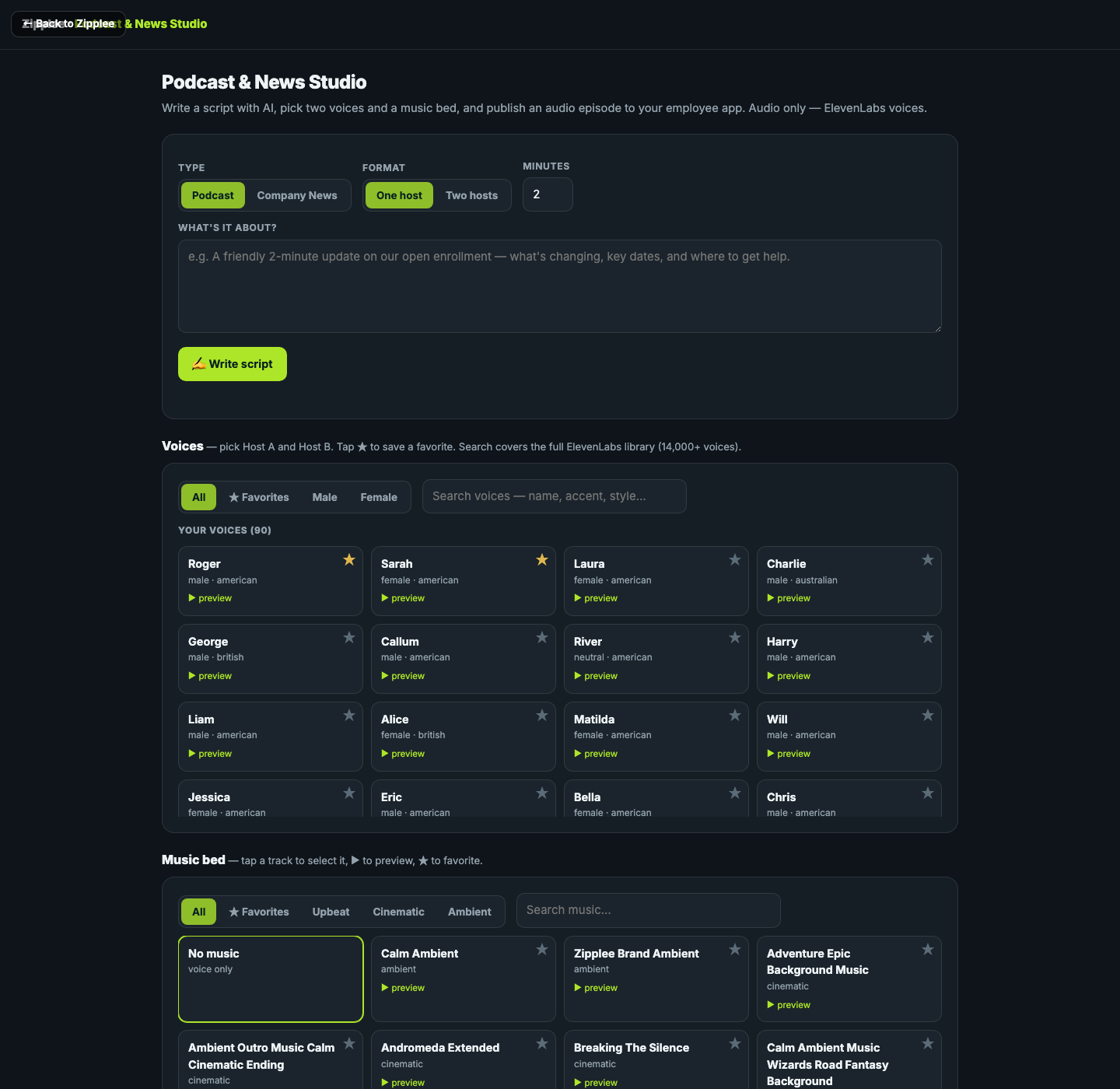
Choose the format, one host or two, and a target length. Tell the studio what the update is about; use the brief to set the audience, purpose, and facts that matter.
Turn a brief into a podcast or an audio news update. Set the length, choose one host or two, edit the AI-drafted script, and generate an episode employees can play in the app.
Hear how a company update can become a short, listenable episode. This fictional benefits example explains dental and vision together with two AI voices.
Dental and vision, explained together.
The studio separates the editorial decisions from audio generation, so your team can correct the words before an episode goes live.
Choose the format, one host or two, and a target length. Tell the studio what the update is about; use the brief to set the audience, purpose, and facts that matter.
Choose “Write script” to draft the episode, then edit the title and script freely. Check names, dates, policies, and instructions before you create the audio.
Podcast mode offers OpenAI voices alongside the searchable ElevenLabs library; Company News uses its own OpenAI voice list. Preview voices, filter choices, and save favorites.
Browse and preview music tracks, filter by mood, save favorites, or choose “No music.” The studio lets you set a preferred bed level; always listen to the generated file to confirm the final sound.
An example for a company training announcement.
Choose “Company News” for a concise update or “Podcast” for a conversational episode. Select “One host” or “Two hosts” and enter the intended minutes.
Describe the training week, generate a draft, and edit the exact wording. Confirm dates and links against your approved announcement before choosing voices.
Select the host voices and generate the audio episode. Play it from “Your episodes” and check what employees will hear in the app.
Generation adds the episode to “Your episodes” and publishes it for employees in the Podcast & News area of their app. There is no separate publish button in this path, so the script and voice choices should be checked before “Generate audio episode.”
The episode list shows its title, type, host format, date, and audio player. Listen to the finished recording instead of relying on the draft script alone.
Zipplee Builder can start a two-host podcast from a saved source document and keep the result linked to that guide. Pair the episode with the written announcement or training course.
Speech generation uses the selected voice provider and its usage allowance. Review provider settings and costs before producing a batch of episodes.
Return to “Your episodes” to replay past work. The studio also provides a deliberate two-step delete control for removing an episode.
A playable company podcast or audio news episode in the employee app, with the reviewed script and selected voices behind it. Listen to the generated recording before pointing employees to it.