Intelligence / Consistency & Knowledge

Know which source the answer came from.

Give Zip the right company information, decide who can use it, and catch facts that no longer agree. The Knowledge library, Documents, Knowledge Graph, and Maintain each handle a different part of that work—from a cited answer to a reviewed correction.

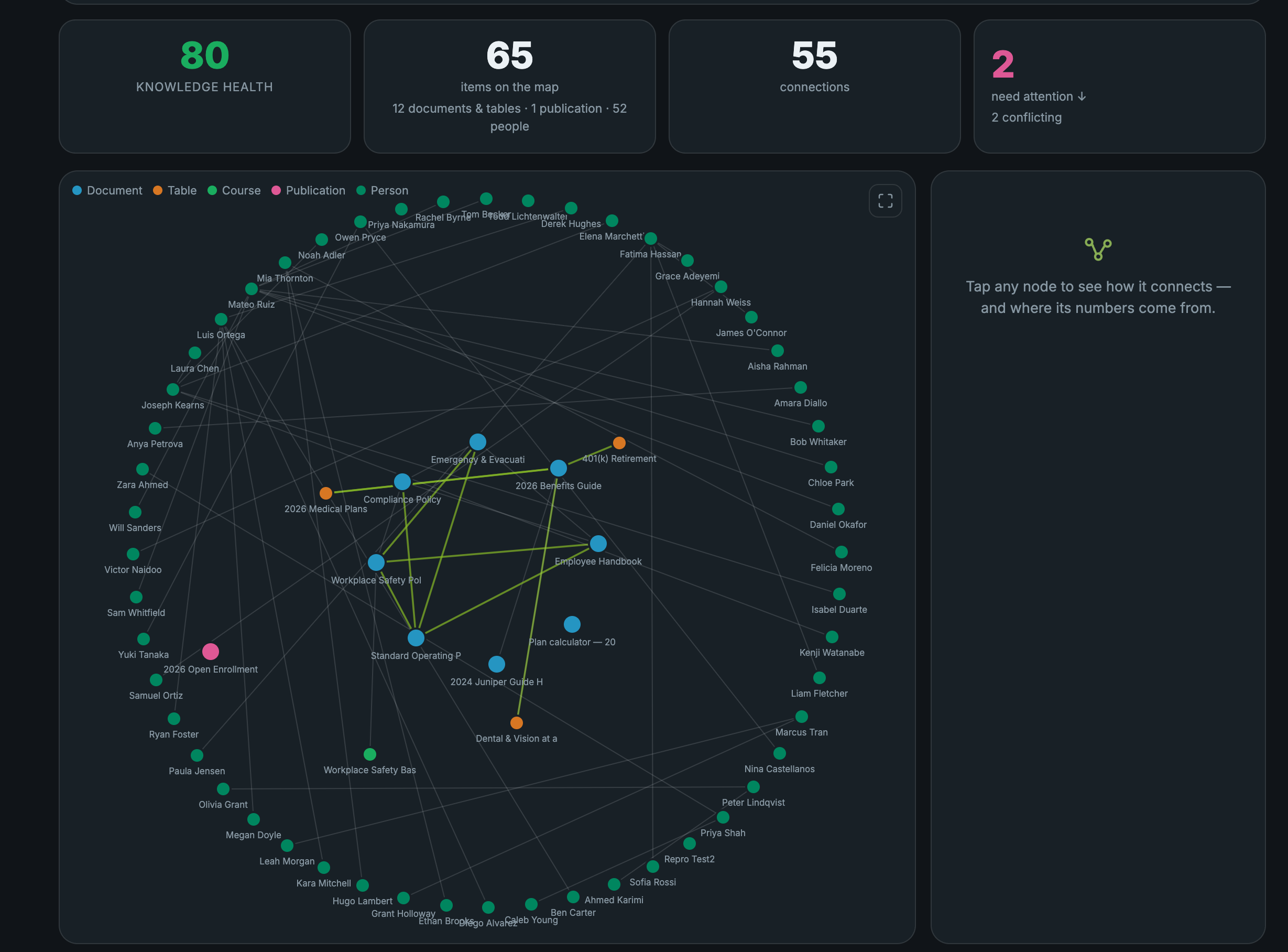
Zipplee Knowledge Graph with a knowledge health indicator, connected documents, tables, publications, and people.
A real Knowledge Graph view of connected company content.
Build a reliable source

Put the right material behind each answer.

Teach the AI in Knowledge

HR can add a PDF, Word document, spreadsheet, CSV, or text file to the company Knowledge library. Give it a type and an optional note. Zip indexes its text so an answer or report can point back to the document it used. HR can replace or remove an entry when it changes.

Publish in Documents

Write or upload a document, place it in an employee-facing category, and publish it. Published text can feed the AI as well as the hub’s Documents area. The “In the AI brain” control lets HR exclude a published document from answers without removing it from Documents.

Choose employee access

Internal knowledge starts with HR access. “Can employees use this?” lets HR share an individual Knowledge entry with employee answers and reports. Employee retrieval is filtered to entries shared with them; an HR-only document does not become available just because someone asks for it.

Keep personal files personal

My Knowledge is an employee’s separate private shelf. A person can upload a file and ask about its contents, but that shelf is tied to their sign-in. HR, managers, and colleagues cannot browse it through the company Knowledge library.

Different audiences

Public answers come from a separate collection.

HR manages external knowledge separately from the internal shelf. Material for the public website chatbot is uploaded to the External collection; internal and personal files are not its source. Each public entry has separate website-chat and public-phone switches. Internal entries have separate employee-chat and internal-receptionist access. A connected phone line and channel setup are required before calls can use that knowledge.

Find what needs attention

See the connections—and the disagreements.

Explore the Knowledge Graph

The map connects company documents, plan tables, guides, courses, publications, and people. Select an item to isolate its relationships and follow a fact back to its source. Knowledge Health points to content worth inspecting; it is not a guarantee that every fact is correct.

Work the review list

The graph flags conflicting figures, duplicate titles, older items due for review, and different plan line-ups. It compares like figures with like figures rather than treating every different number as a conflict. Read both sources before choosing a value; two live plans may be different on purpose.

Correct at the source

When a figure conflicts, choose “Use this everywhere” for the trusted value or “Edit value” if neither source is right. Review the named documents before confirming. The source documents are updated in place, and an immediate Undo is available during that visit.

Review a wider change in Maintain

Describe a changed rate, date, or policy and choose “Find what this affects.” Maintain shows before-and-after edits for exact matches. Approve and apply a document, Skip it, or use “Approve all” after reviewing the proposals. Items that only mention the topic are listed separately for manual review; the scan itself edits nothing.
An example in practice

A deductible changes.
What happens next?

A concrete path from corrected company source to the material employees actually see.

  1. Find the mismatch

    Open Knowledge Graph to compare the benefits table and guide. Select the connected items, read both figures, and check which value is current.

  2. Correct the sources

    Use the trusted figure across the named documents, or enter the correct one if both are wrong. For a broader change, scan with Maintain, inspect each proposed edit, and approve or skip it. If a source changes after review, scan again.

  3. Bring published material up to date

    After a graph correction, select affected published pages and the employee hub for “Re-publish selected.” An output with no matching old wording is left untouched. Re-export PDFs and re-record or regenerate audio and video that still contain the old figure.

After a correction

Know what updates now—and what still needs a publish.

Changing a source does not silently alter every finished copy. Knowledge Graph shows affected outputs so your team can finish the job deliberately.

Source documents and plan tables

A confirmed graph correction updates the affected source documents straight away. Undo can restore them during the same visit if the choice was wrong.

Training courses

Employee training courses read the corrected content when they are next opened.

Employee hub and published pages

The hub’s documents and tables are a published snapshot. Rebuild it after a source change. Knowledge Graph can also re-publish selected affected website, microsite, magazine, and slide pages when the old wording is found; it leaves unmatched pages alone.

Finished media and files

A PDF needs a fresh export. Spoken podcast audio needs a new recording, and a video needs regeneration. Review each finished output before employees rely on the corrected figure.

The result

An answer you can trace. A change you can check.

Your team can see which knowledge was available to whom, where a fact came from, what disagreed, and which edits were approved. Zip uses the source and access available for the question; if the source does not contain an answer, it should say so. Finished downloads and publications need their own refresh after a source change.