Slide Deck
Upload source material and build an editable presentation. Review the slides and export a PowerPoint when the message belongs in a live meeting.
Start with a document, a saved slide deck, or an idea. Choose the kind of story you need to tell, refine the scenes and narration, then render the finished video.
Video Studio keeps presentations and videos as separate projects, so you can make a deck first or go straight to a video.
Upload source material and build an editable presentation. Review the slides and export a PowerPoint when the message belongs in a live meeting.
Choose one of your saved slide decks or upload new slide content. Give it a communication style and visual production style, then add narration and music for a video version.
Describe the video, attach source files, and choose the communication and video styles. Video Studio creates a story plan for review before you produce the scenes.
The creation form accepts PDF, PowerPoint, Word, spreadsheet, CSV, and text files. Your brief can set the direction; the source can carry the details.
Choose a communication style such as teaching, demonstrating, announcing, promoting, or proposing. Then choose a visual direction that fits the project, from an instructional deck to documentary footage, 3D animation, or graphic explanation.
Review scene titles, narration, and footage direction. Add or arrange scenes and revise saved scene content before the final render.
Preview narration for a scene or the full video. Adjust the script, voice, and music in the project workspace.
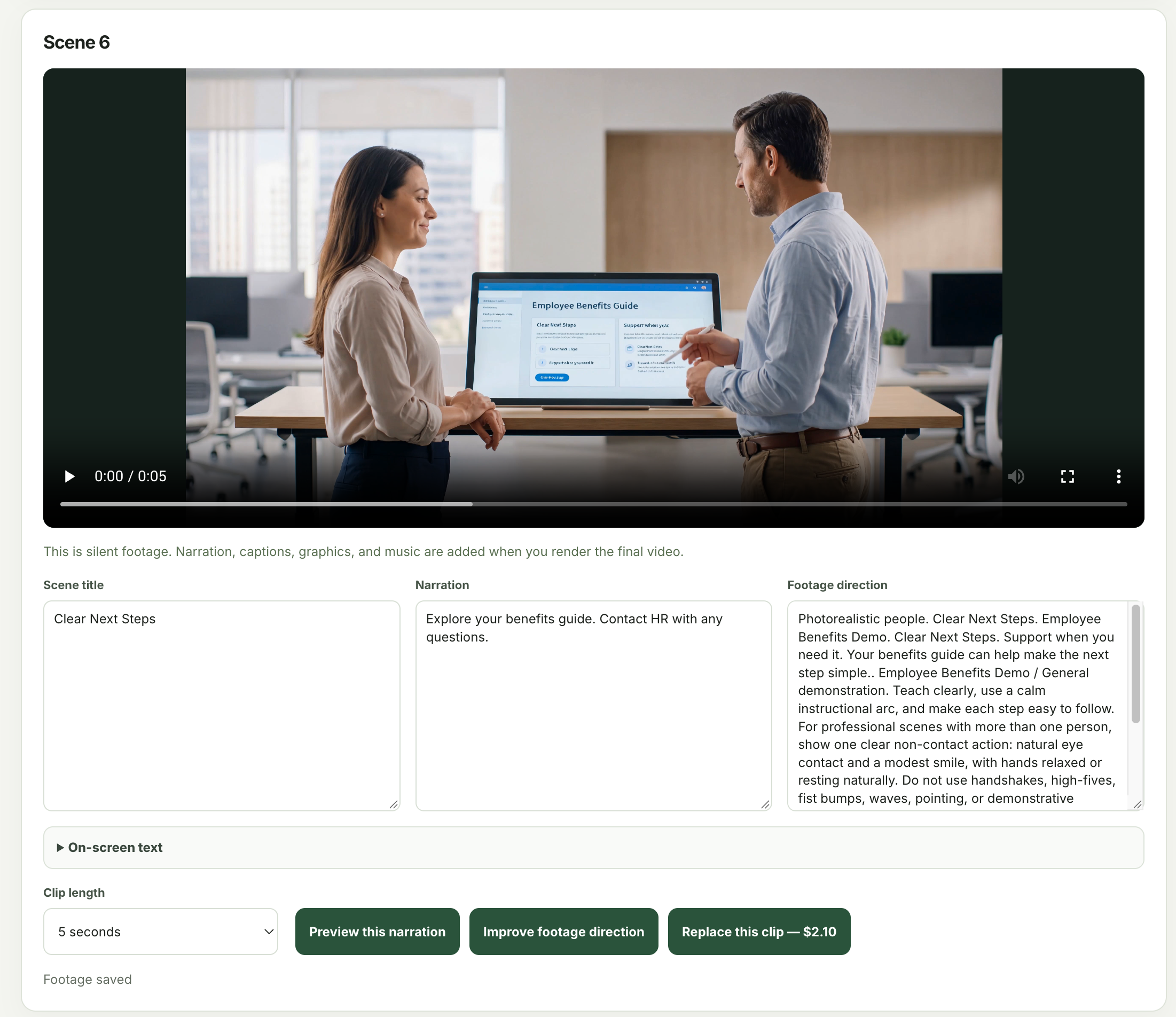
For cinematic videos, refine the footage direction and on-screen text, preview silent clips, and replace a clip when the visual needs another pass.
Render an MP4, watch the exported result, and check words, visuals, timing, audio, and captions before sharing it. Keep the editable project for later changes.
A practical path for an HR announcement or training update.
Upload the written guidance and choose “Create Video,” or make a slide deck first and choose “Deck to Video.”
Choose “Teach & train” or “Announce & update,” review the story plan, and edit the narration and scene direction.
Preview narration and scenes, render the MP4, and watch the finished export before placing it with the written guidance.
Save the project, download the finished MP4, and use available transcript or caption files alongside it. Generated footage and other provider services can carry separate usage costs; the app shows a price before a paid clip action.